
FME Evangelist#24: Click Connect, Concatenator, Log Files, and FME Training
November 10th, 2008
Contents:
A New Chapter in the History of Workbench: Quick Connect
Your Spy at Safe: New Training Facility
Anatomy of an FME Project: Parts V and VI
Concatenator Tip
Shutdown Scripts and Log Files
Hi FME’ers,
Now we’re coming up to FME2009 release date things are a bit hectic here, hence the longer than usual gap between posts.
Part of the busyness is fitting in final fixes for what some people call the “user experience”.
User Experience is something that we don’t often notice in a product, until it goes tragically wrong. A recent mobile phone I purchased takes 30 (yes THIRTY) button presses to lock so I don’t accidentally dial numbers when it’s in my pocket. A recent TV purchase has a similarly tortuous menu to access most common items of functionality. I’m not very impressed with either of them to say the least.
And that’s why it’s so important that we have users who take an active part in beta-testing our products. Our Professional Services team at Safe is responsible for “eating our own dog food”; but many of the problem reports, ideas and suggestions come from our loyal customer base.
And in the latest beta is a new function - Quick Connect - that I think will greatly enhance an already pretty good user interface. So a big thank you to the users who suggested this improvement and who submitted feedback on its original implementation. We truly couldn’t do all this without you!
A New Chapter in the History of Workbench: Quick Connect
Users of recent FME2009 beta builds may have noticed a new piece of functionality in Workbench: Quick Connect.
Quick Connect is designed to help users author workspaces more easily. Instead of having to drag connections between different objects in the canvas, you can now connect them by simply clicking on the ports you wish to connect.
Below: First click on the output port to be connected (note the resulting change in cursor):
Below: Then hover over the input port and…:
Below: …click to complete the connection:
The most useful scenario for this functionality is when you have a large workspace and the need to make connections from one section to another. Usually you would zoom out until both parts are in view, but this could be tricky if the connection to be made is extremely large. Now with Click-Connect you can choose the source port, window to the new area, then choose the destination port to complete the connection.
To find out more information on this new feature I created a movie and posted it to our YouTube channel, FMEGuru. Here it is embedded inside this post. I apologize in advance for the cheesy opening, I was trying to mimic the movie Independence Day.
One thing you may notice is that I get confused between “Click-Connect” and “Quick-Connect”. I don’t really think it matters which you use, though I think “Quick-Connect” is the official terminology.
Your Spy at Safe: New Training Facility
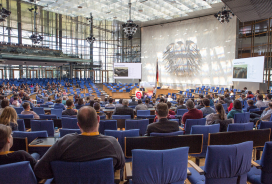
One thing my cell phone is good for is taking low-res photos that look like they’ve been captured by an undercover spy. So sneaking down to where we’re currently extending the office I snapped this photo of what will be Safe Software’s new training facility:
Don’t worry; there are more than two computers; in fact when complete this will be a 16+ seat facility, with lots of hi-tech gadgets, self-contained away from the rest of the office. The first live course here will start on Wednesday 12th November.
Personally I think the training materials are worth their weight in gold, but eavesdropping on the Marketing team I hear they plan to give some seats away for free! So keep an eye out for training offers in the coming months.
Anatomy of a Project: Part V: Grabbing a Google Map Image
It’s been a while so let’s review where this project is so far.
In Parts I and II we set up the project, read in a bunch of election sign addresses from CSV and geocoded them by running them through a Yahoo geocoding service.
In Parts III and IV we overlaid the sign locations onto a poll map, divided up the data by sign type using an AttributeFilter, then wrote the output to KML.
That gives us a map we can use for election planning and strategizing, but it doesn’t help the workers in the field because the campaign isn’t hi-tech enough to have KML-reading mobile devices.
So what I want to do now is create a record sheet for each sign. With a map on it the sign-crew can use this sheet to find the sign location, and then record any information about the sign.
In fact it’s easier to describe by showing the output and then demonstrating how we got there:
As you can see there are two different map images, each at a different scale. Like the Geocoding stage we’ll do this by creating a URL string and getting the data from a web service. For the left-hand map the URL is a concatenation of:
http://maps.google.com/staticmap?center= GeoCodeLatitude, GeoCodeLongitude &zoom=16&size=320x320&maptype=roadmap&markers= GeoCodeLatitude, GeoCodeLongitude ,blue&key=xxxxxxxxxx
…while for the right-hand map the only difference is the zoom level (13 instead of 16). Items in red are actually attributes, the rest is hard-coded information.
Unlike the GeoCoding (which used the HTTPFetcher transformer) we want to return a raster image, so an ImageFetcher transformer was used to send the URL and push the data out as a raster feature.
Anatomy of a Project: Part VI: Writing a HTML File
Having obtained the inset maps, it’s just a case of wrapping them into a HTML file.
Perhaps in a more advanced project the best way would have been to create a template HTML file and just replace parts of it with the new information. However, in this case it was simpler to just use the Concatenator again to create some HTML code, then write it out to a text file.
This time we are concatenating:
<html><h2>Burnaby Douglas Federal Riding</h2><h3>2008 Election Sign Location</h3> <table border="0" cellpadding="8"><tr><td><b>Sign ID: </b> ID </td><td> <b>Poll Number: </b> pollNumber </td><td> <b>Sign Type: </b> SignType </td></tr>
…….etc etc, with the important bit of the map being embedded done using:
<img border="1" src=SignLocationMaps/inset ID .png>
Actually all this is a lot simpler than it sounds, with this part of the workspace looking like this (click to enlarge):
I have to say I’m quite proud of how well this turned out - in terms of how useful it was - for very little effort. What would be really cool is if this was tied into FME Server - by setting the mime type of the output file to HTML it could be used as a data streaming service where the user enters a sign ID and gets the record sheet for that sign - as a web page - in return.
Concatenator Tip
Here’s a useful tip to be aware of, the next time you are using a Concatenator with a long list of items.
During the above project I was creating a HTML file by concatenating together a mixture of hard-coded HTML and attribute values, and writing to a text file (note the name of the destination attribute: text_line_data):
The problem here is that although I wished to add strings (such as the highlighted “ ”) near the top of the list, the Concatenator adds constants to the bottom; so there I was clicking the “Up” button repeatedly until the required string was in position.
It was only when I accidentally selected a whole bunch of lines at once, that I realized instead of moving the required line up many times, I could select a whole bunch of lines at once and move them down en-masse.
Below: Here I select all lines below the point at which the “ ” line is to go:
Below: Here I click the “Down” button and the bottom line leaps magically into the chosen position:
A cool function (way to go developer guys) and something to bear in mind when using the Concatenator, which is one of FME’s more popular transformers. Now I can move a single line up without having to press UP many, many, many times.
Oh, and yes, I know I shouldn’t use   - but like many folk I do it anyway!
Shutdown Scripts and Log Files
Recent FME2009 builds (approx 5612+) have an additional function of interest to TCL and Python scripters.
A new variable called FME_NumFeaturesLogged can be used in a shutdown script to find out how many features were sent to the log file during a translation. Usually features are logged automatically by FME when there is a problem processing them (but a slight enough problem not to need to terminate the translation), so this variable can be used to determine if any warnings of this nature occurred, and how many features were affected.
Note:
- FME_NumFeaturesLogged reports the total number of features sent to the log, including those suppressed because they are in excess of the LOG_MAX_FEATURES keyword.
In fact, you can even access this variable from the regular Tcl and Python callers - presumably because the translation process isn’t then complete it will return the number of features logged to that point.
Also, as of build 5613, there is a parameter called WORKSPACE_NAME that will give you the name of the workspace being run. This can be useful for things such as writing custom or online logs (see the Advanced Training at the 2008 User Conference for an example).
This parameter will contain the last saved name (no extension, no path) for the workspace, no matter if run in workbench or externally. The macros FME_MF_NAME and FME_MF_NAME_MASTER were also adjusted so that if Workbench is running the workspace, these will reflect the last saved workspace name, but if it’s run from elsewhere these will be based on the underlying file that is running. Note that these include the extension but not the pathname.
You can access these using the ParameterFetcher, or in Tcl scripts using $FME_MacroValues(WORKSPACE_NAME)
This time of year in Vancouver we get dark nights and rain that seems to last for weeks. So depending on how you deal with this:
This Edition of the FME Evangelist…
…was written to the tune of “Ain’t No Sunshine”. More melancholy than this you just can’t get (no, not even Leonard Cohen). The version I heard was by Joan Osborne but I couldn’t find her on YouTube, so the above link shows Mr. Bill Withers doing his stuff.
This Edition of the FME Evangelist…
…was written to the tune of “Rock ‘n’ Roll Star“ by Oasis. If you prefer not to wallow in depression, this is something lively to pick you up on a cold and dreary winter’s day. Difficult to listen to without tapping the feet and strumming your air guitar.
Entry Filed under: Data Transformation, Developer Tools, FME Desktop, GIS, Geoweb, Training, Usability


1 Comment
1. FME 2009 – It&rsquo&hellip | January 16th, 2009 at 1:12 am
[...] feature that I really like about the new UI is Quick Connect. Mark describes this over at the FME Evangelist blog better than I ever could… make sure to watch his cheesy movie for some time-saving [...]