
FME2010 Use Case: The ClusterModeller
April 5th, 2010
Hi FME’ers,
Today marks the next phase in my yearly FME evangelising: use cases, or how to solve particular spatial data problems by using FME.
This example arose because of a question on the FMETalk user group:
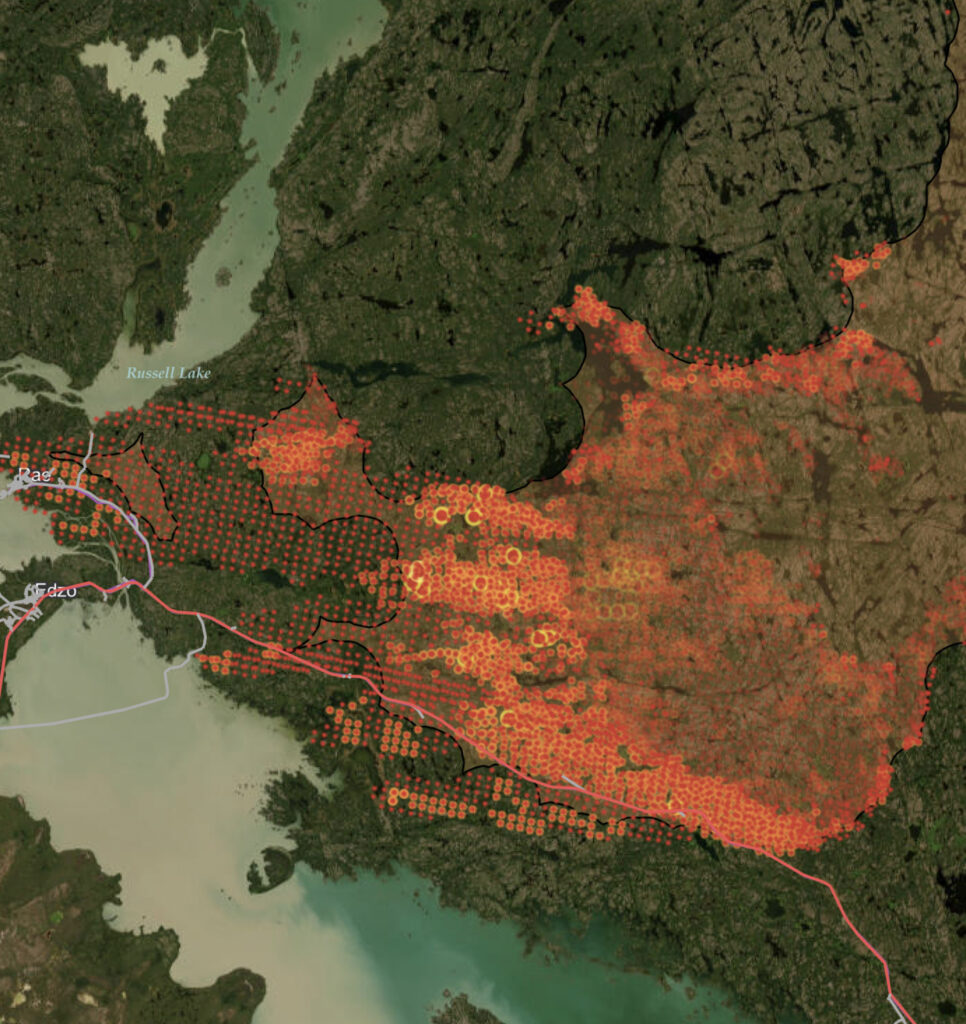
“I’m trying to render a hot spot map of crimes.
Using other GIS systems, I can easily do a Kernel Density type analysis which will create contours of dense areas.
I’d like to do this in FME, but am struggling! Any thoughts please?”
What is pleasing is that the solution uses just a few transformers, and also that writing the output to PDF gives a pretty stunning visualisation.
Also, I’m able to upload to our fmepedia FME Server installation, so that anyone can get hold of this transformer by simply using File > Download from fmepedia. How cool is that?
Density and Clustering
FME does have a DensityCalculator transformer, but this requirement is - I think - a little different. Basically we need to calculate density (or clustering) by taking each point and assessing the density of similar points within the same area.
Input
This transformer accepts as input any set of point features.
Below: In my original test case I used a set of address points. You can see where there are clusters of addresses, but can we write this to a format for better visualization?
Output
Yes we can! The output from this transformer can be either a set of contours, or a surface feature. You could write this to many formats, including ones capable of true 3D visualization.
Below: 3D PDF output opened in Adobe Viewer. This is showing both surface and contours, though of course you could just use one or the other.
The one issue about the output is that it can look fairly flat, even in the densest areas. To counter this, the Z values are all exaggerated by a factor of 10.
Now I can really see where there are clusters of points.
Source Data
The source data in my example comes from the FME Sample Dataset (address points for Austin, TX) and I also used some from the City of Vancouver’s excellent open data catalogue (heritage sites for Vancouver, BC). But if you use ‘Download from fmepedia’ then you’ll get the Vancouver data included.
Methodology
The method is very simple. I just find the number of neighbors within a given radius for each point, and use that value as the Z in a DEM/Surface Model.
The trick is to find the best radius to give a good result. This transformer offers the user the ability to enter that value, or will calculate one automatically based on the average distance between the input points.
Detailed Description
Here’s the transformer as a whole. You can see how it is made up of two main parts.
Below: The custom transformer definition.
Let’s take a closer look at the section in the blue bookmark, as this is where all the real work takes place.
Below: The processing section.
This starts out with a NeighborFinder transformer. Rather than the normal Base/Candidate use, we’re using the NeighborFinder in a special mode in which the input is both Base AND Candidate. We set a maximum radius for finding neighbors (what I call ‘tolerance’) and set a list attribute to store the results.
The ListElementCounter is then used to find how many entries are in the list - i.e. how many neighbors cluster around this point, within the defined tolerance. Unmatched points (those with no neighbors) are set to 1.
The 3DForcer transformer simply sets the Z coordinate of each point to this value, and the Scaler multiplies it by 10 to emphasize the results.
Finally, the SurfaceModeller turns the points and their Z values into a digital elevation model (DEM) and uses that to create a set of contours and a TIN surface.
The contours are simple line features compatible with almost any format. The surface is a true 3D feature, compatible with formats supporting 3D (PDF, Geodatabase, 3DS, etc).
You might be asking, “what did the red section of workspace do?”. That’s where we calculate a tolerance if the user did not set one.
Below: The tolerance calculation section.
Here the NeighborFinder is again used, but this time we want to find the distance between each point and its nearest neighbor.
Then a StatisticsCalculator and an ExpressionEvaluator are used to calculate a tolerance value based on the average distance between points.
The FeatureMerger then attaches that tolerance value back onto the original features.
Limitations and Updates
For a list of limitations and recent updates, see the ClusterModeller page on fmepedia.
Server Implementation
If you implemented the workspace on an FME Server then you would have the ability to let users upload their own point datasets, set the workspace parameters, and receive cluster data in 3D PDF for visualization in Adobe Reader.
In the basic FME Server interface this would look like this (below)
Download
You can download this custom transformer from its fmepedia page, or by using the option in FME2010 Workbench to ‘Download from fmepedia’ (below)
Above: Be sure to select the fmepedia repository to find the ClusterModeller transformer, and to have the ‘Download additional resources’ option checked if you want the data, screenshots and instructions.
This custom transformer requires the use of FME2010.
Entry Filed under: Data Transformation, FME Desktop, FME Server, GIS, Raster


Trackback this post